

- Self-Managed VPS (with backup addon)
- Fully-Managed VPS
- Restoration of entire server
- Restoration of terminated cPanel account
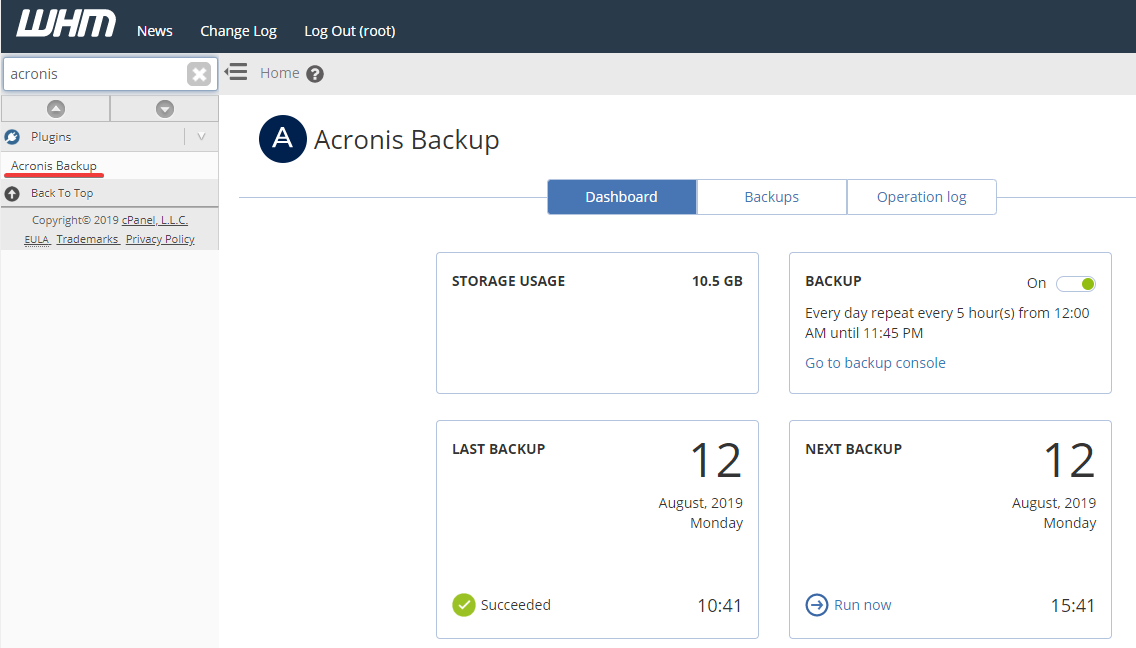 Select a backup date and time.
 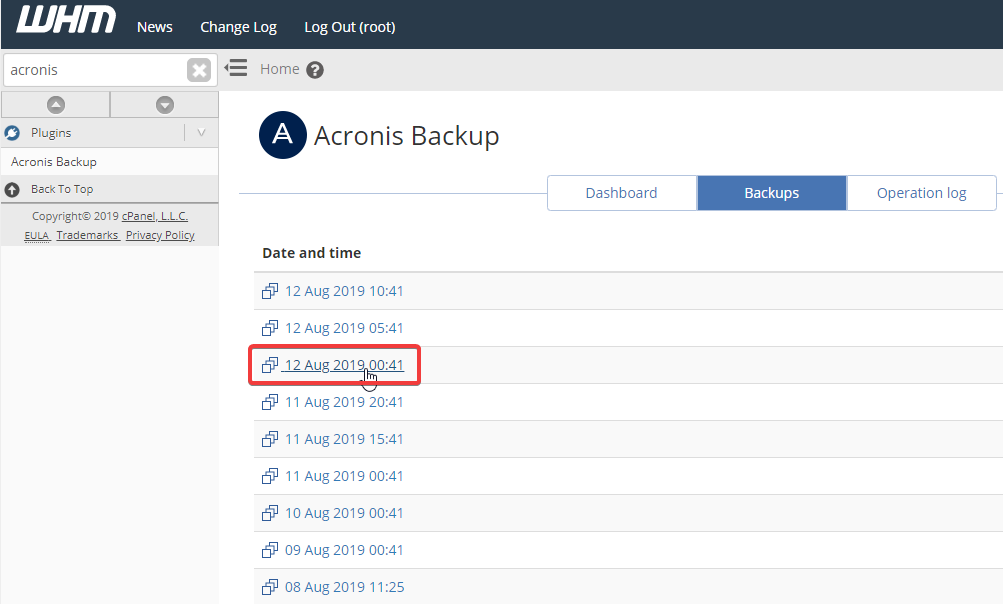 You will then be presented with options for what you’d like to restore. The “Recover entire server” option should be left as a last resort, often used when a major configuration or server-wide change went wrong.
 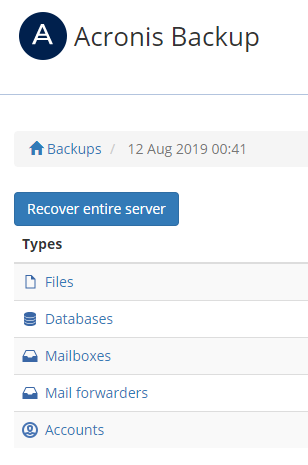 Restoring a terminated cPanel account is as easy as clicking on Accounts, selecting the account you wish to restore, and choosing recover. This will restore all content including emails, databases, and files unless you specify to skip a step. You can also select Download to download a file cpbackup file that you can restore on a completely different cPanel server.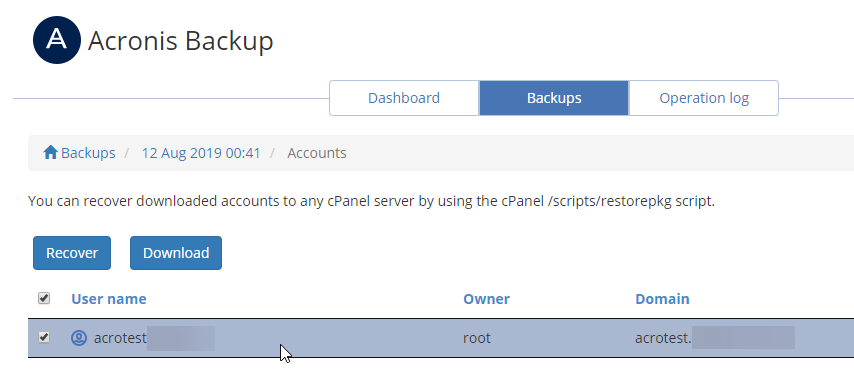
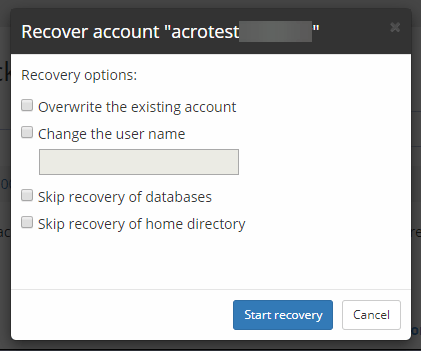 Once you click Start Recovery, the process will begin, and you can track the status under Operation Log.
 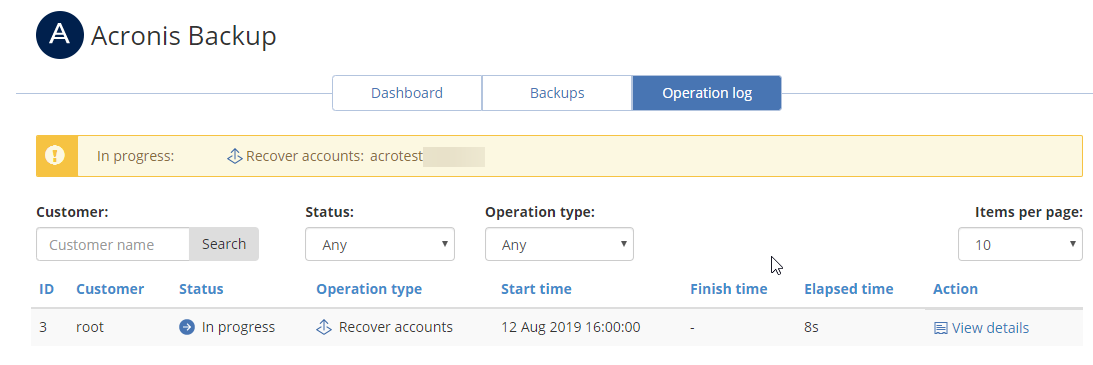 It will look like this once it’s complete.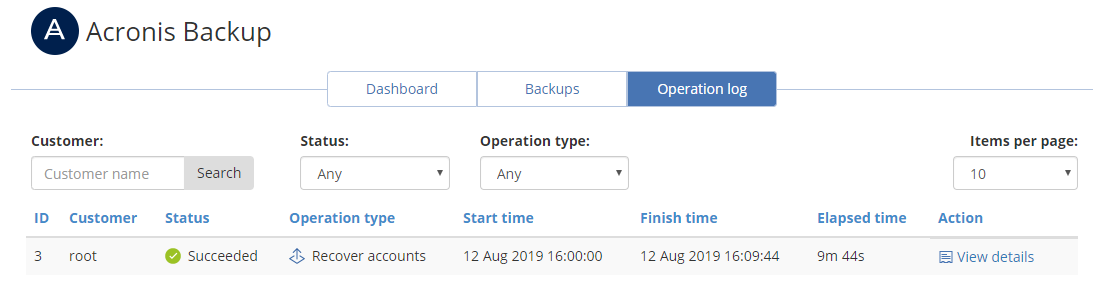
To perform a full server restore
PLEASE NOTE: This process will restart your VPS for Acronis to block-level restore the server’s disk back to the restore point. Depending on disk size, this may take a few hours. Log in to WHM and select a backup as shown above, but click the “Recover entire server” option. Once you confirm the details are correct, select “Start Recovery.”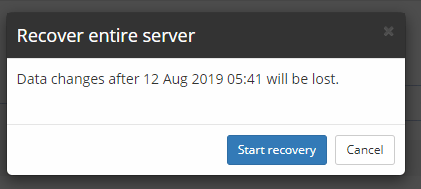 The server will restart, and once the volumes are restored, it will start back up once the restore is complete. You can monitor this process via your server’s VNC console.
If you need any assistance while following any of these processes, feel free to get in touch with us via eTicket or over the phone on 13 24 85.
The server will restart, and once the volumes are restored, it will start back up once the restore is complete. You can monitor this process via your server’s VNC console.
If you need any assistance while following any of these processes, feel free to get in touch with us via eTicket or over the phone on 13 24 85.